Internal Network Scanning
HostedScan provides scalable and secure options to connect vulnerability scanners on internal networks to hostedscan.com for centralized management and reporting.
This secure solution does not require any open ports, tunnels, or other access to your network.
How it works
You install a scanner, or an agent on each device, inside the network. It connects outbound only — no open ports or tunnels. You drive it from your HostedScan dashboard, and discovered hosts become Targets whose findings become Risks. The options differ in where the scanner runs and what it connects to, as the table below shows.
Choosing an option
There are two ways to scan an internal network, both set up from the Internal Networks page:
| Tenable Nessus | HostedScan Internal Scanner | |
|---|---|---|
| Scan engine | Nessus | OpenVAS (Greenbone Community Edition) |
| Included on | Professional plan | Premium plan |
| Managed by | Tenable Cloud, driven from HostedScan | HostedScan, end to end |
| Connects out to | sensor.cloud.tenable.com, cloud.tenable.com | api.hostedscan.com, registry.community.greenbone.net |
| Covers | A network, or a single host via the agent | A network |
Option 1: Tenable Nessus scanning
Nessus-based scanning comes in two forms. Both link through Tenable Cloud while you drive them from HostedScan.
Tenable Nessus Scanner
A Nessus scanner installed on one machine inside the network, scanning the hosts around it. Choose this to cover a subnet or range of hosts with Nessus.
See the Tenable Nessus Scanner guide.
Tenable Nessus Agent
A lightweight agent installed on each device you want to monitor, reporting only on the host it runs on. Choose this for laptops, desktops, and servers, including devices that move between networks or are not reachable over the network.
See the Agent-based scanning guide.
Option 2: HostedScan OpenVAS scanning
The HostedScan Internal Scanner is our own application, installed on a single scanning server alongside OpenVAS. It orchestrates the underlying vulnerability scanners and connects to HostedScan to enable full command and control from your HostedScan dashboard.
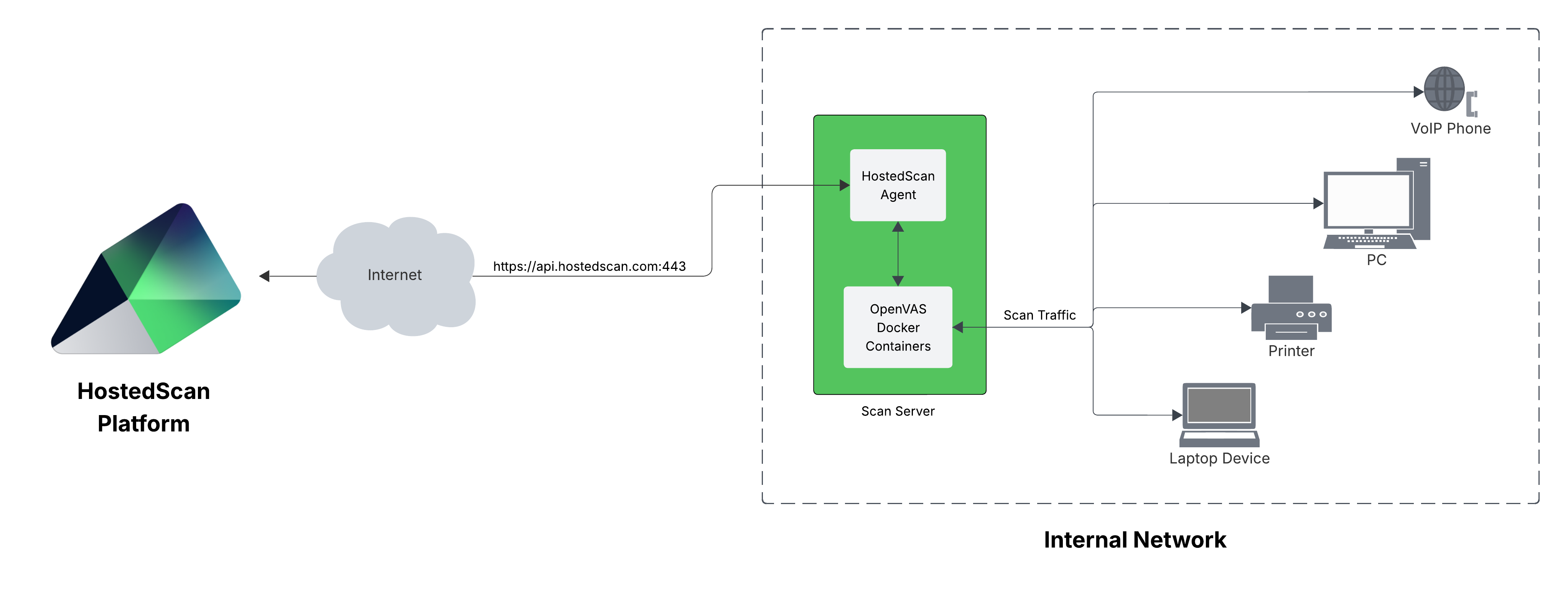
For detailed system requirements, see the Install the Internal Scanner on Linux guide.
Set up the internal scanner
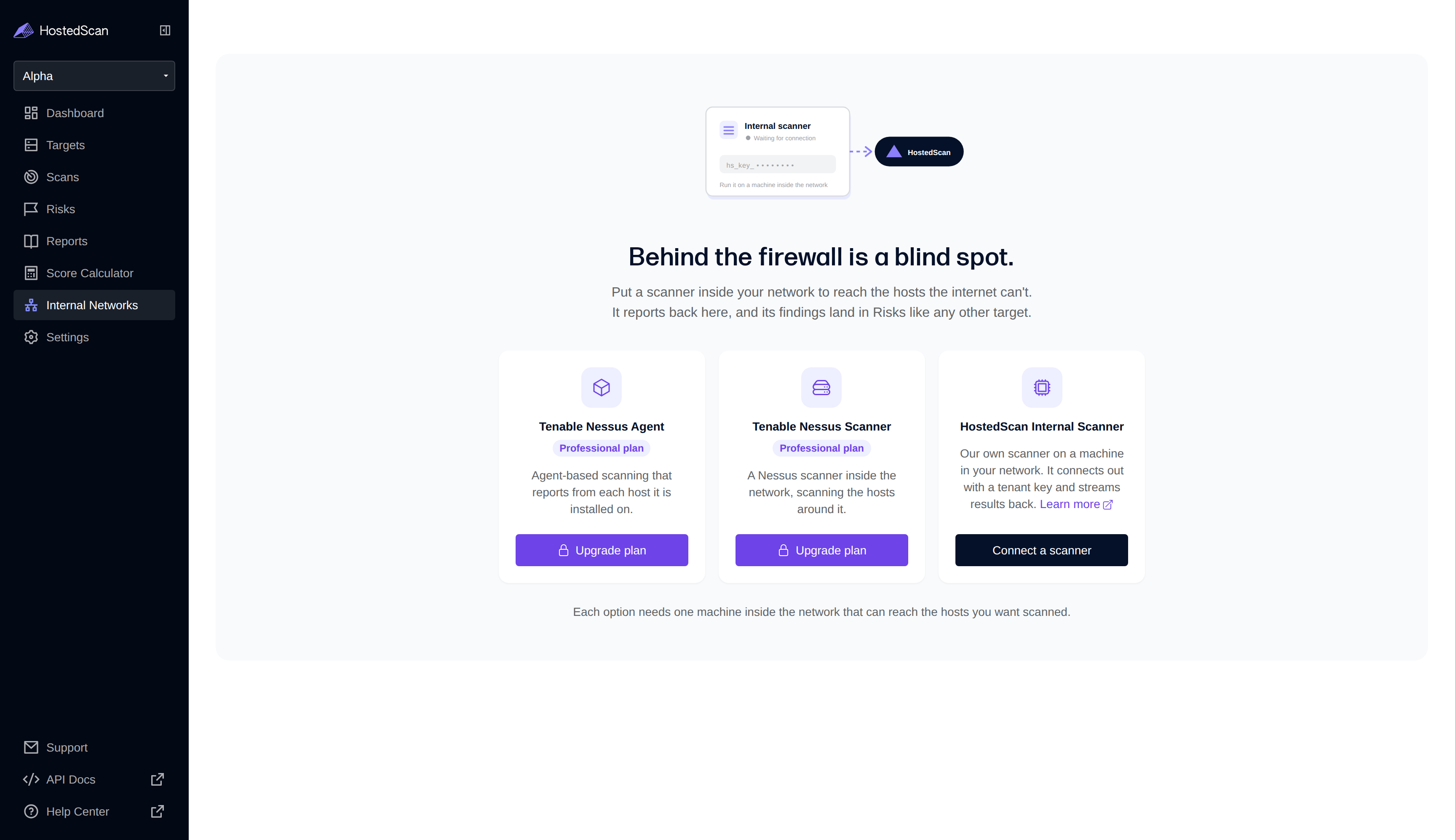
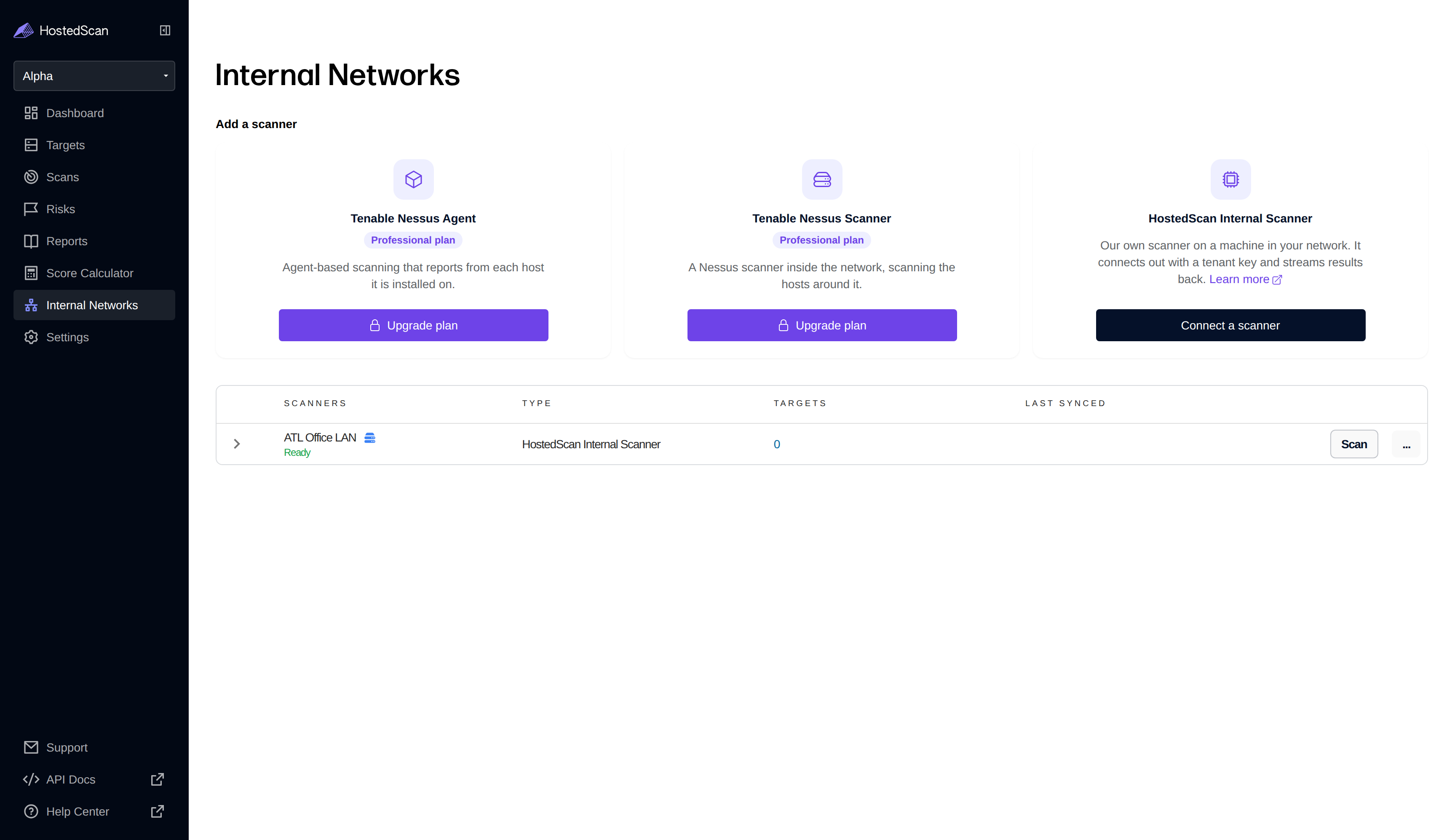
- Connect a new internal scanner by clicking on Connect a scanner in the HostedScan Internal Scanner card on the Internal Networks page. It is one of three scanner options on that page, alongside the Tenable Nessus Agent and the Tenable Nessus Scanner.
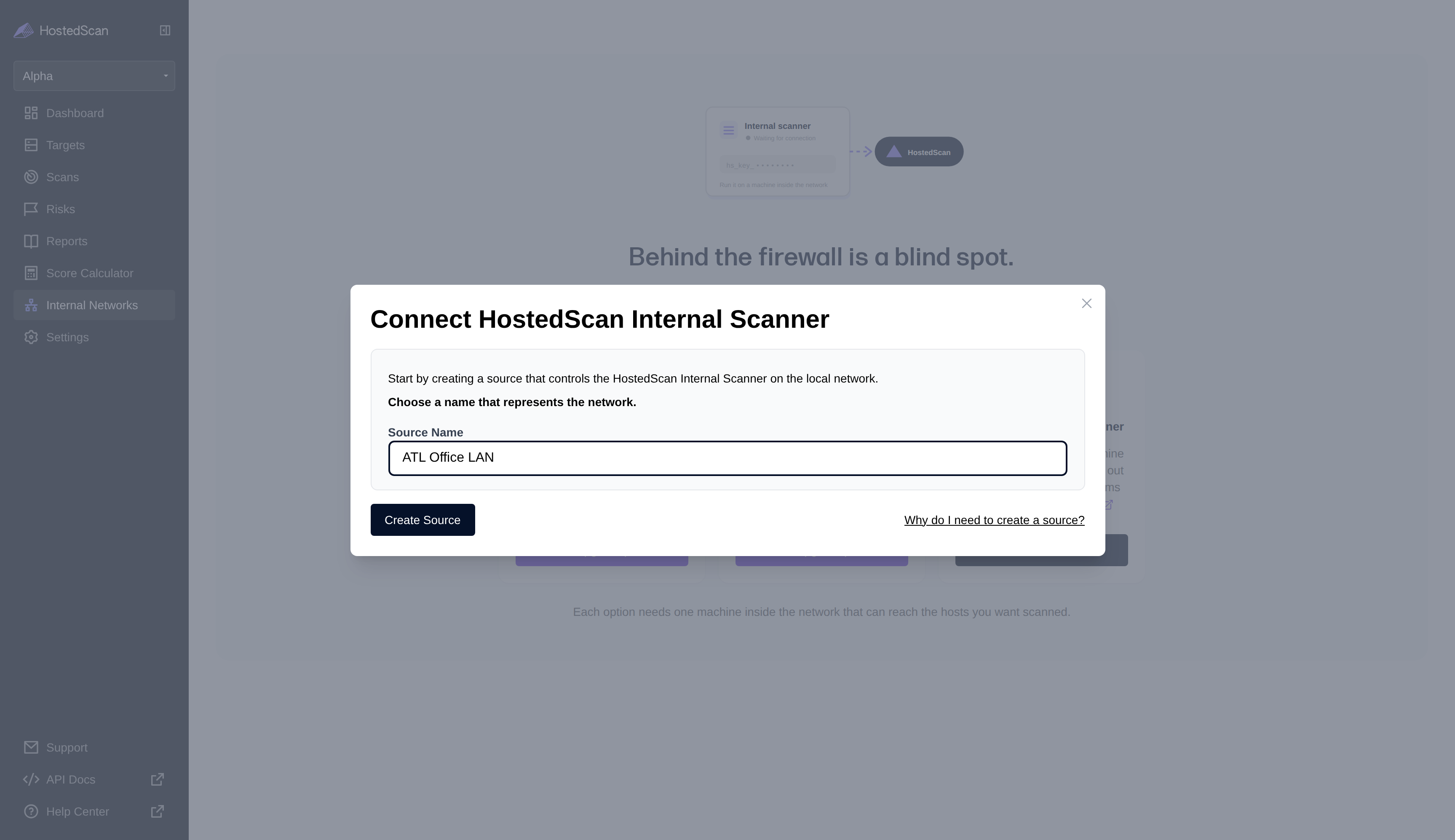
- Choose a name for the source network. You will initiate scans under this source network, and discovered targets will be grouped by it.
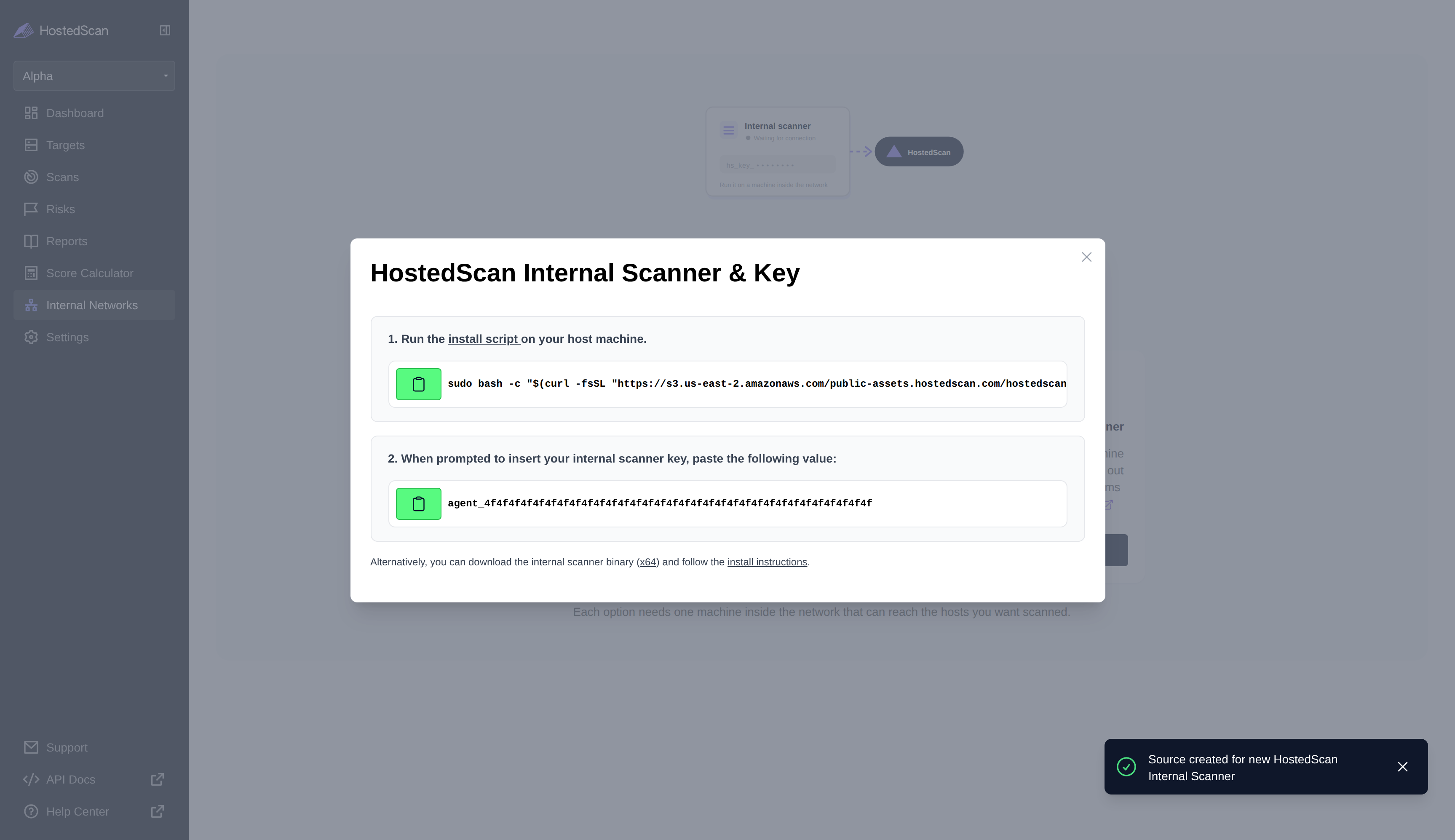
- Run the install script on your host machine as root (alternatively, install the internal scanner according to our Install the Internal Scanner on Linux guide).
Ensure that you copy the HostedScan Internal Scanner registration key before closing the modal. The key is used to authenticate your installation of the internal scanner to hostedscan.com.
The key is shown only once. If you lose it, open the ... menu on the scanner's row in the Scanners table and choose Get new internal scanner key to issue a replacement.
-
At this point, the HostedScan Internal Scanner source network will show as Disconnected in the Scanners table on the Internal Networks page. Once the internal scanner connects, the status progresses as it comes online:
- Awaiting Telemetry - the internal scanner is connected; HostedScan is waiting for it to report its first OpenVAS telemetry.
- OpenVAS Initializing / OpenVAS Syncing - OpenVAS is starting up or updating its vulnerability feeds. The first launch of OpenVAS may take an hour or longer.
- Ready - the internal scanner and OpenVAS are ready. You can now run your first internal network scan.
Run your first scan
- Click the Scan button for your source network on the Internal Networks page.
-
Set Scope: Enter the IP ranges and individual IP addresses you want to scan. You can:
- Add CIDR ranges (e.g.,
192.168.1.0/24) to scan entire subnets - Add individual IP addresses (e.g.,
192.168.1.100) for specific targets - Add ranges of IP addresses (e.g.,
192.168.1.15-192.168.1.100) for specific subranges of targets - Use multiple ranges to scan different network segments in a single scan
For each item or range added, you can add specific tags that will be added to each target discovered in that range. A single scan can cover up to 8,190 hosts. Each CIDR range can be at most a /20 (4,094 hosts), so one scan can hold two full /20 ranges.
- Add CIDR ranges (e.g.,
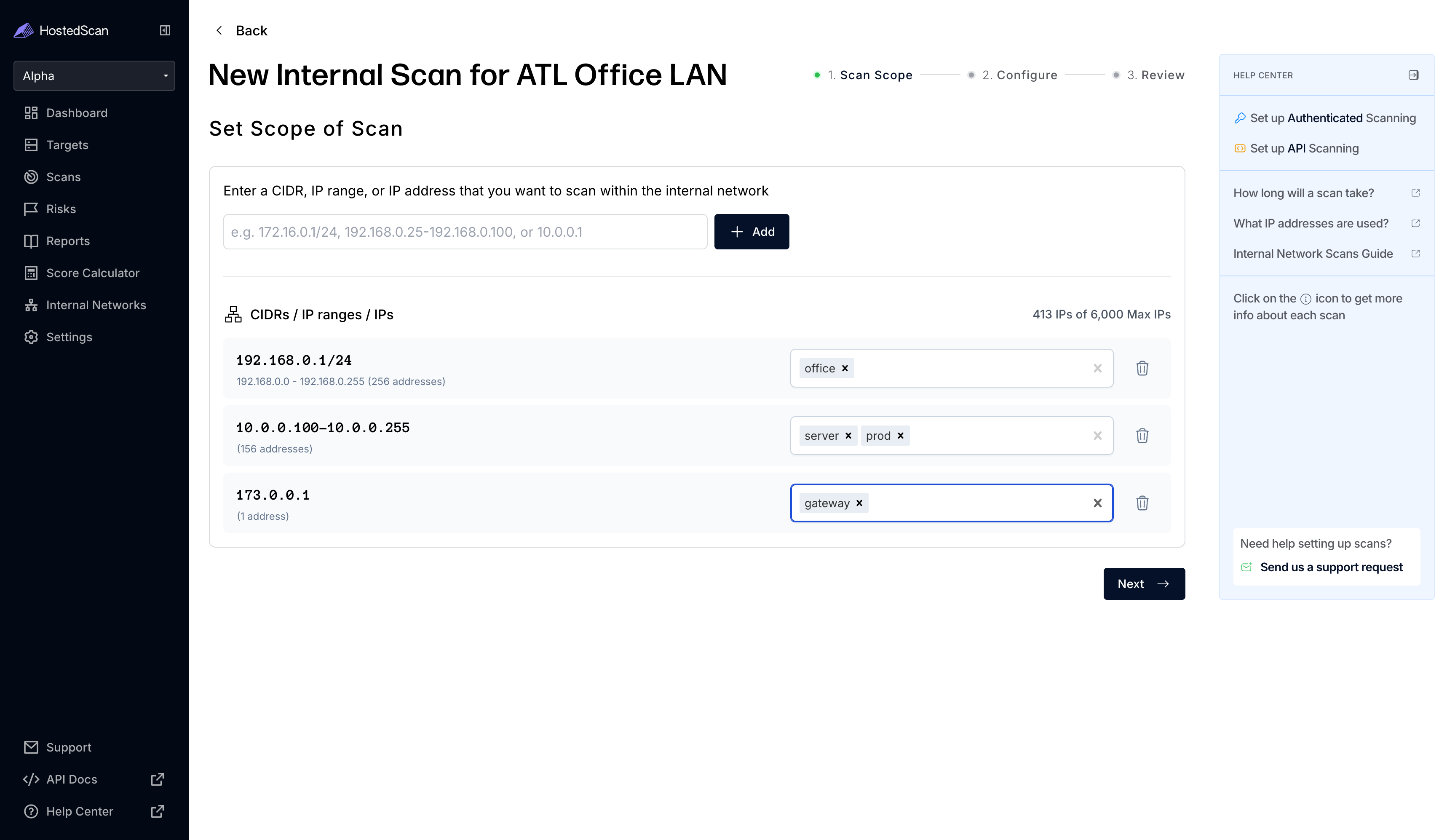
Tagging ranges during setup helps organize discovered targets by location, department, or function (e.g., "servers", "workstations", "DMZ"). Tags make it easier to filter and analyze results later.
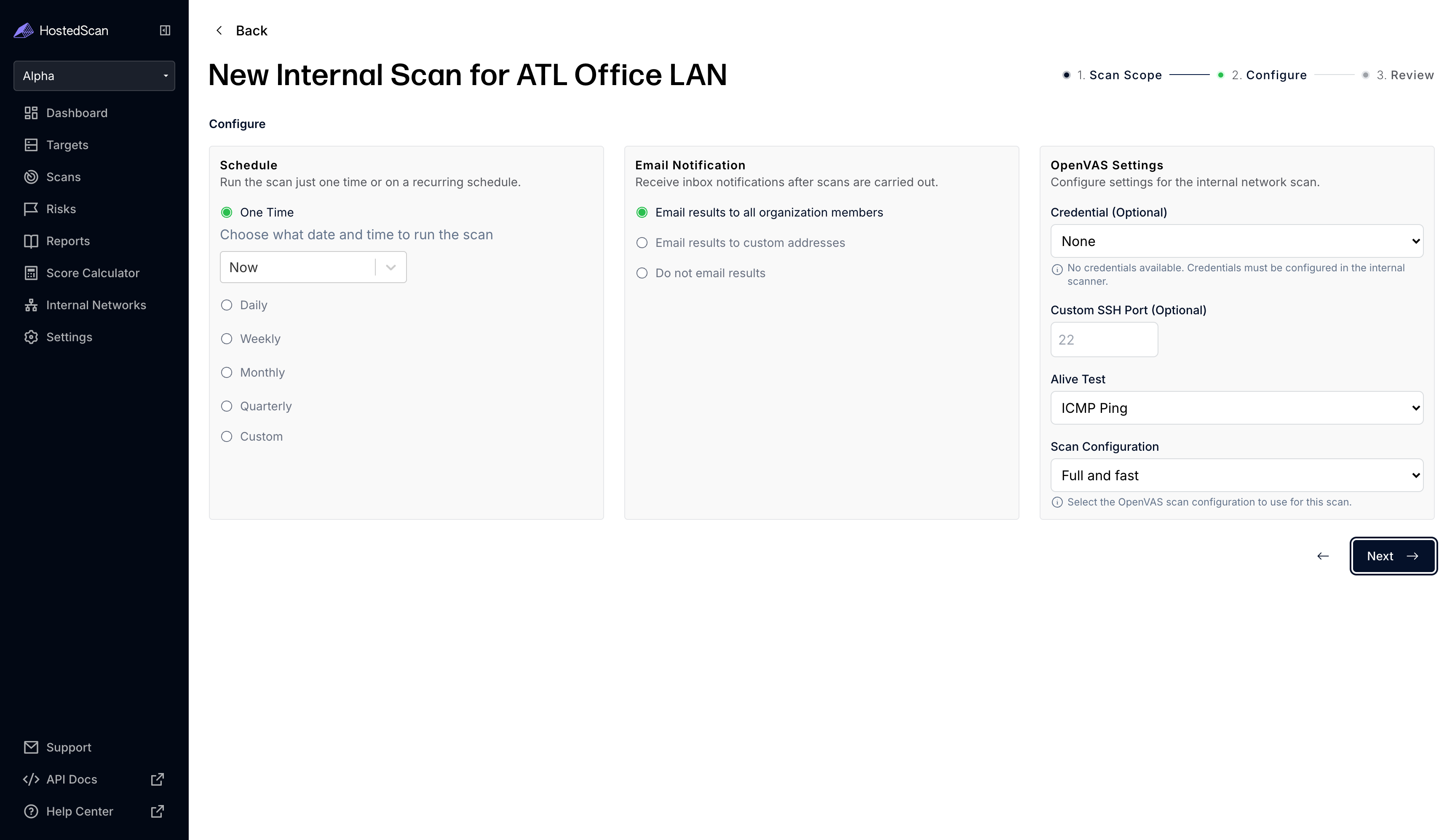
- Configure Scan Settings: Choose your scan configuration options including:
- Schedule when to run the scan (now, at a future time, or on a recurring schedule)
- Email notifications for scan completion
- OpenVAS settings for internal network scans (credentials, SSH port, alive test, and the OpenVAS scan configuration to use). See Enhanced Scanning with Authentication for more details on credentials and authenticated scanning.
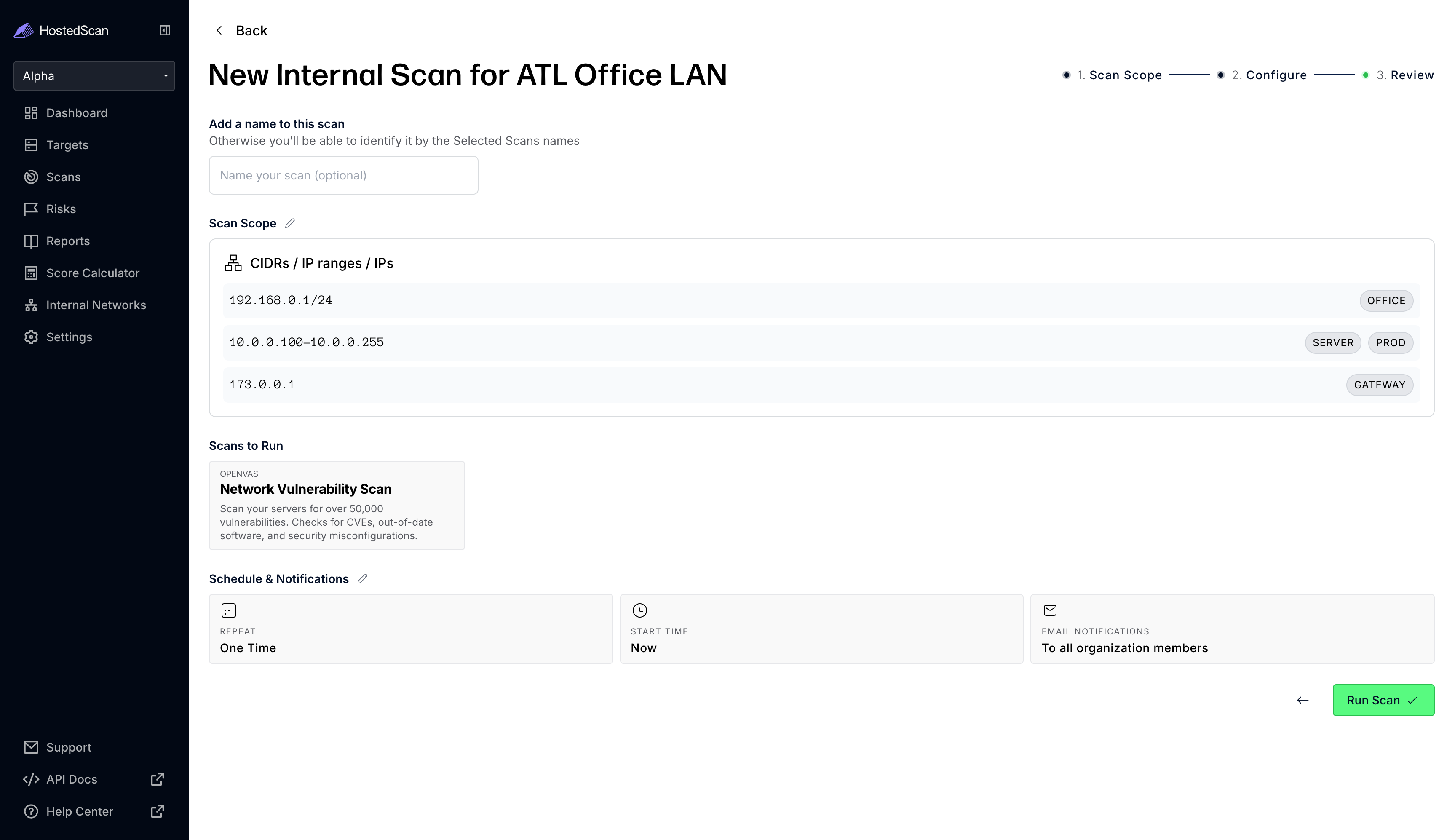
- Review and Start: Review your scan configuration, optionally give the scan a name, and click Run Scan to start the vulnerability assessment. If you chose a future start time or a recurring schedule, the button reads Schedule Scan instead.
- Monitor Progress: The scan will begin and you can monitor its progress on the Scans tab of the scans page. If you chose a future start time or a recurring schedule, the schedule is listed on the Scheduled Scans tab, and each run appears on the Scans tab when it starts. Depending on the number of IPs and services running, scans may take hours or even a day to complete.
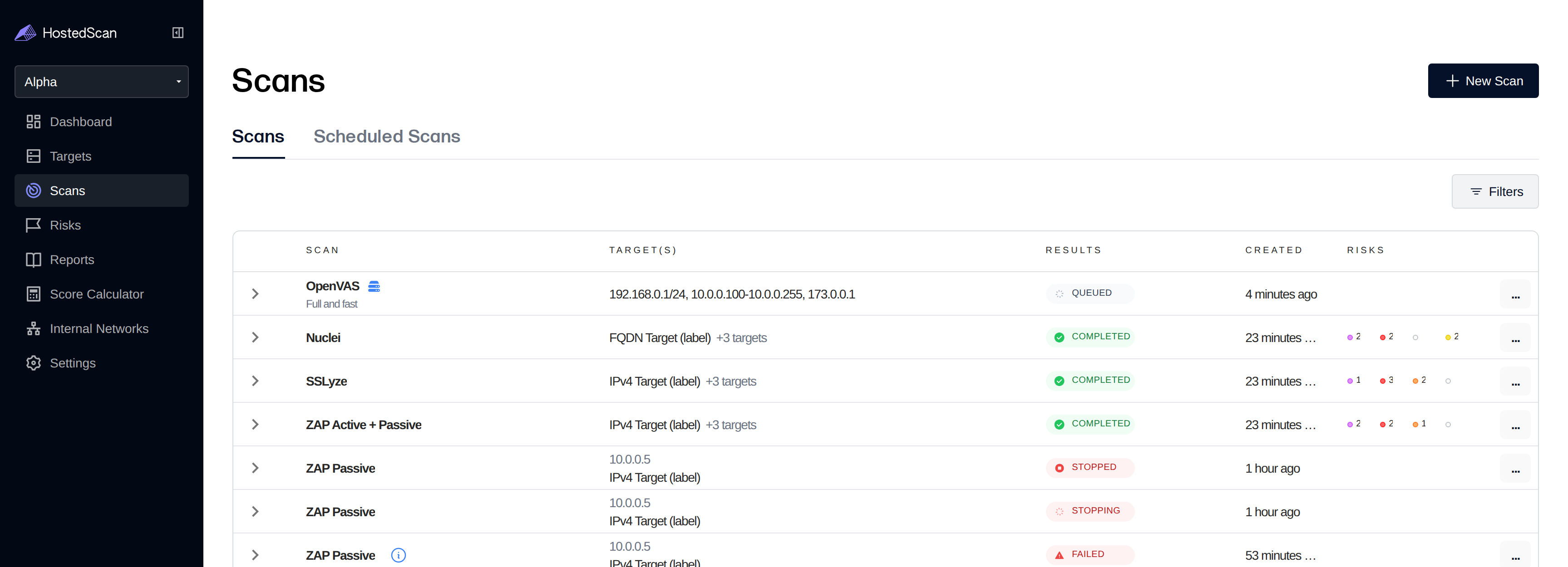
Once completed, the following information is available in the HostedScan platform:
- Scan reports - can be found on the scans page.
- Discovered Targets - can be found on the targets page. You can use the filters to narrow to the source network or by tags.
- Detected Risks - can be found on the risks page. You can use filters to narrow to the source network or by tags.
Enhanced Scanning with Authentication
For more comprehensive vulnerability assessment, HostedScan supports OpenVAS authenticated scanning which allows the scanner to log into target systems and perform deeper security analysis.
Authenticated scanning provides significantly more detailed results by accessing internal system configuration, installed software, and security settings that are not visible from network-level scans alone.
To set up authenticated scanning:
- Configure credentials on your scanning server using the internal scanner's credential management commands
- Test credentials against a target systems to ensure they work correctly
- Select credentials when configuring scans in the HostedScan dashboard
For detailed instructions on setting up and using authenticated scanning, see the Authenticated Scanning guide.
What's Next?
- Tenable Nessus Scanner - Run a Nessus scanner inside your network
- Agent-based scanning - Install the Tenable Nessus Agent per device
- Install the Internal Scanner on Linux - Detailed installation and setup instructions
- Authenticated Scanning - Set up credentials for comprehensive vulnerability assessment